
How to Deposit on Upgrader.pro
A complete look at the Upgrader.pro top-up flow, including cards, crypto networks, skin deposits, promo code entry and balance rules.
Upgrader.pro Deposit Methods
The current top-up window is divided into three methods: Cards, Crypto and Skins. Availability can depend on location and the payment provider shown in your live account.
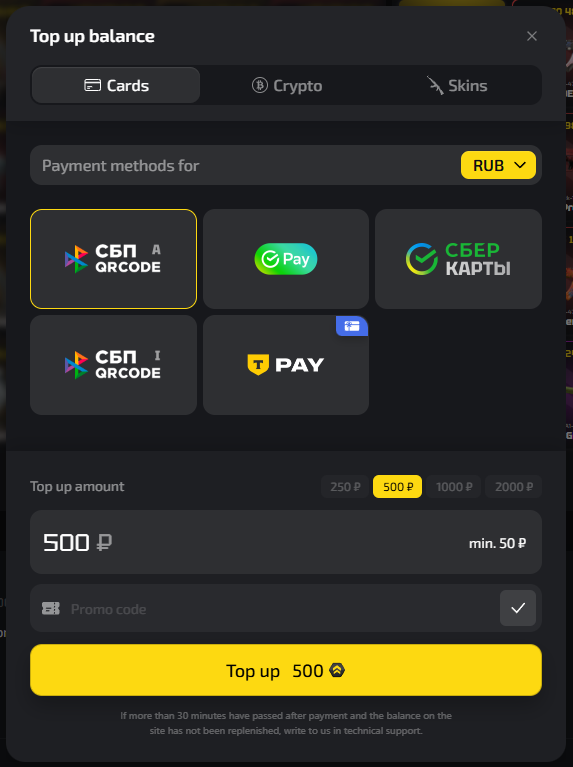
Open the current payment window and check which methods are available to your account.
How to Deposit on Upgrader.pro
- 1
Log in and open Top Up
Use Steam authorization and open the balance top-up window from the account interface.
- 2
Choose Cards, Crypto or Skins
Select the relevant tab. Card providers and supported regional methods may vary; crypto and skin options are shown separately.
- 3
Enter the amount and promo code
The top-up panel includes an amount field and a promo code field. Check our Upgrader.pro promo code before confirming.
- 4
Confirm with the payment provider
Complete the payment using the instructions shown for the selected method, then check your account balance and payment history.
Crypto Deposits on Upgrader.pro
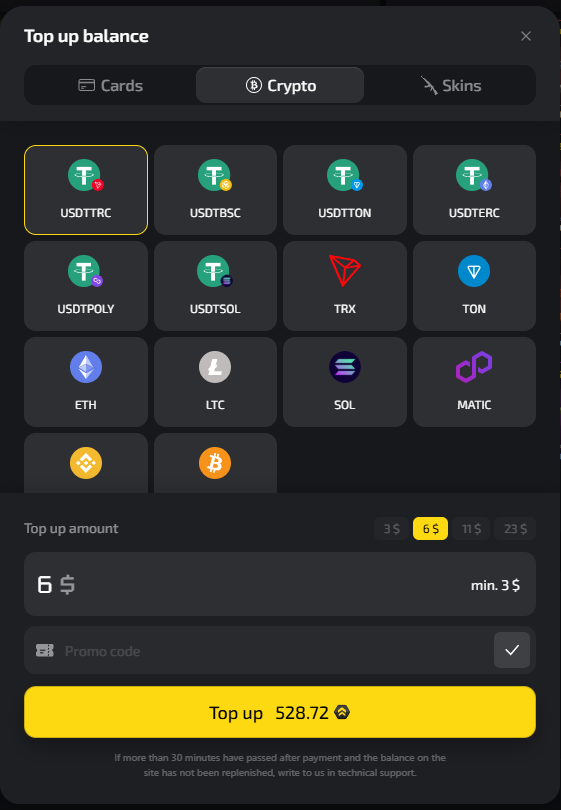
The crypto tab shown in the current interface includes multiple networks and assets, such as USDT on TRC, BSC, TON, ERC, Polygon and Solana, alongside TRX, TON, ETH, LTC, SOL and MATIC. The list visible in your account should be treated as the current source of truth because supported assets can change.
When the same asset is available on several networks, select the exact network shown by the deposit flow. Sending assets on an unsupported or incorrect network can result in loss.
Open the live top-up window and select the exact asset and network you intend to use.
Deposit CS2 Skins
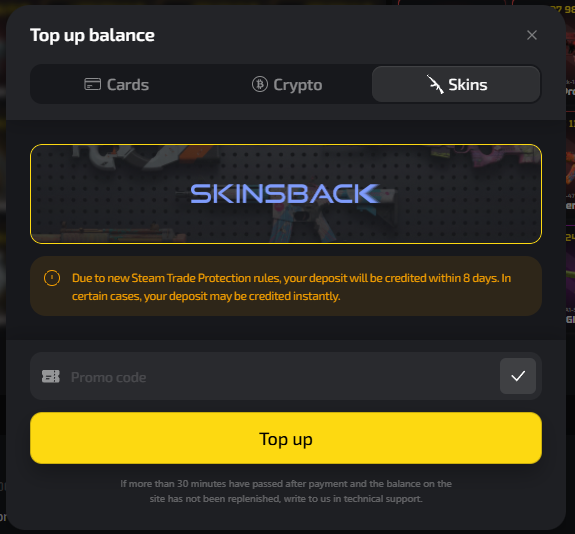
The Skins tab currently routes skin deposits through SkinsBack. The interface also displays an important Steam Trade Protection notice: a skin deposit may be credited within 8 days, although some deposits can be credited immediately.
Do not assume a skin deposit will appear instantly. Use the timing notice displayed in the live Upgrader.pro interface and contact support if the platform's stated waiting period has passed.
Deposit, Balance and Withdrawal Requirements
Upgrader.pro's current Terms say that each balance top-up contributes to a required usage amount before items acquired using deposited funds can be withdrawn. The requirement is tracked per top-up, and a new top-up adds its amount to the total required usage. Until that requirement is met, withdrawal or extraction of value may be restricted.
This is different from a separate promotional rollover. It is a general platform condition tied to deposited funds, so it is relevant even when a user is not claiming a bonus.
The same usage requirement affects CS2 skin withdrawals, while the exact account and refund conditions remain part of the current Terms & Conditions.
Upgrader.pro Deposit FAQ
What deposit methods does Upgrader.pro show?
The current top-up interface is organized into Cards, Crypto and Skins tabs.
Can I enter a promo code when depositing?
Yes. The top-up interface displays a promo code field. Check the current promo page before confirming a payment.
Which crypto assets are shown?
The supplied interface shows several USDT networks plus TRX, TON, ETH, LTC, SOL, MATIC and additional options.
Are skin deposits instant?
Not always. The current Skins tab warns that Steam Trade Protection can delay crediting for up to 8 days, while some deposits may be credited instantly.
Do deposits affect withdrawals?
Yes. The current Terms describe a usage requirement tied to deposited funds before related items can be withdrawn.
Information updated: August 17, 2026